
Saving in PDF/A format
You can use for example Microsoft Word or Adobe Acrobat Pro available on shared Uniarts Helsinki IT Services devices (library, IT class, loan devices) to create a PDF/A file.
What is PDF/A
PDF/A is a version of the PDF specialized for use in the archiving and long-term preservation of electronic documents.
In practice, the only difference between storing materials in a PDF/A file and in a normal PDF file is that the correct saving format must be selected in the settings of the program you are using. Programs do not save as PDF/A by default.
We recommend that you familiarise yourself with the Universities of Applied Sciences Thesis accessibility guidelines and Converting your thesis to a PDF/A file.
Before You Begin
The menus, buttons and views mentioned in this guide may vary slightly depending on your operating system, software version and device.
For creating PDF/A files, we recommend the desktop version of Microsoft Word or Adobe Acrobat Pro. Uniarts Helsinki students can install Microsoft 365 applications, including Word, on their own devices free of charge. Read more about M365 applications.
If you cannot find the options described in this guide or are unable to create a PDF/A file on your own device, use a shared computer in a Uniarts Helsinki library, IT classroom or loan device. The required software is available on these devices.
Saving with Microsoft Word (Windows)
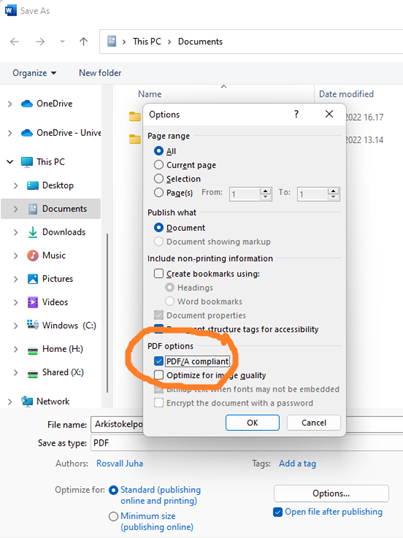
- Open the thesis in Word
- Select “Save as”
- Select PDF as the file type to use
- Click on “More options…”
- Click on “Options”
- Tick the “PDF/A-compatible / PDF/A compliant” box
- Press “OK”
- Name the file
- Select the save directory
- Press “Save”
Saving with Microsoft Word (macOS Tahoe)
Word for Mac may not support creating PDF/A files directly. In this case, you can use the macOS Preview application to convert the file to PDF/A.
- Open the document in Word.
- Select File and Print.
- In the Print dialog, select the PDF button in the lower-left corner.
- Select Open in Preview.
- When the file opens in Preview, select File and Export.
- Choose the save location.
- Select Create PDF/A.
- Click Save.
Saving with Adobe Acrobat Pro
- Open the thesis in Adobe Acrobat
- Select “Menu > Save as other”
- Select “Archivable PDF (PDF/A)”
- Name the file
- Select the save directory
- Press “Save”